
The Monarch Extension will help you get a clearer picture of your shopping orders by sorting items purchased online into more detailed categories—no more seeing all of your purchases fall into one big “Shopping” category. Currently, the extension works with Amazon and Target.
The extension works by syncing your order details, then analyzing each item to determine the best category for each purchase. The extension will automatically split and categorize these transactions within Monarch to give you a more accurate view of your spending, and will even add notes to the transaction so you know exactly what was in that order and why it was categorized that way.
Table of Contents
- Downloading and Using the Extension
- What Happens When You Sync
- Syncing Older Orders
- Viewing and Matching Orders
- Extension Settings
- Troubleshooting
- FAQs
Downloading and Using the Extension
-
Download the extension from the Chrome Web Store using your desktop browser.
- Open the extension (you may need to click into the puzzle icon in your browser to select it from your list of extensions) and click “Log in to Monarch.” If you’re already logged in on this browser, you won’t have to enter your credentials again.
- You’ll see confirmation that Monarch is connected.
- Next, log in to the retailer in a new tab on the same browser. This does not have to be the same email as your Monarch email. Once logged into the retail site, click the extension icon again and select “Set up." You may need to allow permissions to access the retailer's website.
Note: The extension will only sync from the retail account you’re signed into, and, for Amazon, only works with Amazon US with the language set to "English." It will not sync with business accounts.
- From here, you’ll choose what actions you would like the extension to take, and whether you want these actions to apply to the past three months of transactions or only to future transactions. Once selected, click "Connect Amazon" or "Connect Target."
NOTE: These options will only appear during initial setup. Once the extension has been set up, you will not see these options again and there is no way to change the setting.-
If you opt to "Apply to past and future transactions," the following will occur:
- If you select “Add item details to transaction notes,” the process will add notes, but will not overwrite existing notes.
- If you select “Automatically split and categorize,” it will override any existing splits or categorization that you may have already done either manually or via rules.
-
If you opt to apply to “Only future transactions,” you will still click “Connect,” and your preferences will save. The extension will verify that it can pull order data from the retail site by pulling in the last three months of orders, but the sync will not make any changes to these orders. You can later go back and use the "Sync older orders" option to fill in history if you choose.
-
If you opt to "Apply to past and future transactions," the following will occur:
- Once connected, you’ll see “Sync now.” Click this to run the sync for the first time. You can navigate away from this page and the sync will continue to run in the background.
- When the sync has run, you will see a summary of the actions taken.
- You can click the “settings” gear icon within the extension at any time to view your synced orders, update the settings, get help, or import older orders.
- If you would like the sync to run automatically every 24 hours as long as you’re signed into Monarch and the retail site, you can turn on the “Auto-sync” option by clicking the extension icon again. Toggle auto-sync off/on to reset the time of day the automatic sync runs to the current time. You can also run a manual sync at any time by clicking “Sync now.”
Note: If you log out of Monarch, you will also be logged out of the extension and will need to log in again for syncs to run.
- To go back and enable the other retailer (the one you didn't connect with initially), open the extension (you may need to click into the puzzle icon in your browser to select it from your list of extensions), and you should be able to complete the process for the second retailer.
What Happens When You Sync
- Upon initial setup, Monarch will import the last three months' worth of orders from the retailer and attempts to match them to transactions within Monarch based on merchant, amount, and approximate date.
- Note: This occurs whether you opted to allow the extension to modify past and future orders or just future orders. If you opt to allow the extension to modify only future orders, no actions will be taken on these orders; this step just allows the extension to verify it can pull orders from the retail site as expected.
- A system tag (Retail Sync) is applied automatically to all matched transactions to help you filter these transactions within Monarch.
- Depending on your settings, Retail Sync may:
- Add notes (without overriding existing notes).
- Split and re-categorize transactions, which may override manual splits, rules-based splits, or existing categories. If a matched transaction was split manually or via a rule previously, the sync may un-split it and create new splits.
- When splitting is allowed, Retail Sync analyzes order details to categorize each item, including custom categories when possible. If a better match is found, the transaction may be split and re-categorized; otherwise, all or part of the order may remain under “Shopping.”
- Taxes are distributed proportionally across splits, while delivery fees and other fees are split evenly.
- Any unmatched transactions remain unchanged and may be matched on a future sync, or manually matched. This can happen if the payment method isn’t connected in Monarch or the transaction hasn’t posted yet.
- Note: Orders paid entirely with gift cards, credits, or other unlinked payment methods won’t be matched. Pending transactions won’t be matched either.
- Ignored transactions mean that the sync skipped them as you opted to only sync future orders. To sync these, you can sync older orders.
- You can backfill orders that the extension did not initially sync by using the sync older transactions option within the extension settings.
- You can view all imported orders in your Extension settings by clicking "Orders", or in the Monarch Transactions page under the Retail Sync tab.
- Once a transaction is touched by the extension, it won’t be updated again, even if you later change the settings.
Syncing Older Orders 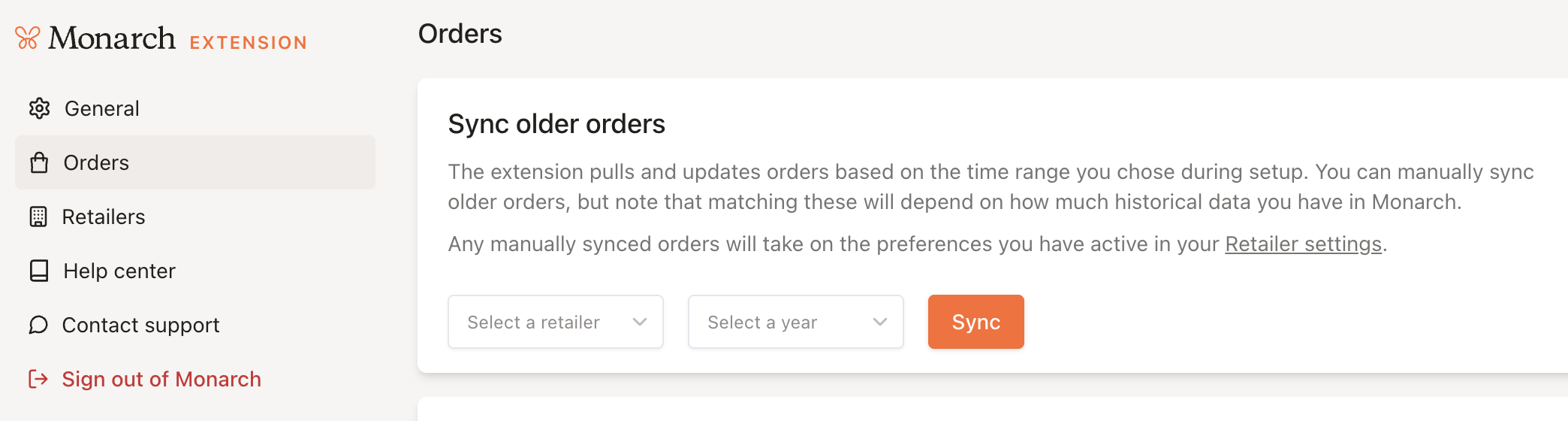
If you opted to have the initial import run on past & future orders, the extension will pull retail orders from the last three months. If you want to have the extension run on orders older than that (back to 2018), you can do so by visiting the extension settings and clicking on “Orders.” From here, you can choose to sync orders from a previous year by selecting the desired year and clicking “Sync.” You can navigate away from this page while it is running.
The past sync will respect the settings that you have selected within the extension with regards to whether it adds notes, recategorizes, or both, and will overwrite category updates or splits that were previously made.
When you run the sync on past orders, it will update past orders regardless of whether or not you selected sync ”Only future transactions” upon initial setup.
This process is limited to one past sync per hour due to retailer rate limits.
| 💡 Note: If your past order sync fails, please try logging out of the retail site in your browser and logging back in, then reconnecting the extension. If the sync continues to fail, it may be because there are too many orders that year, and the retailer is rate-limiting the extension. In general, if this is the case, the sync will not complete. At this time, you can sync up to 180 orders per year using the backfill option. Depending on the retailer's response to the extension, it may pull only the first 180, or it may fail entirely. |
Viewing and Matching Orders
You can view your retail orders and match them to transactions in two places: within the extension, and directly inside the Monarch web app.
In the Monarch web app
On web (mobile support coming soon!), go to Transactions page and open the Retail Sync tab at the top. Here, you'll see all of your Amazon and Target orders that the extension has synced, without needing to open the extension.
You can filter by retailer (Amazon or Target) and by status (Matched or Unmatched).
Each order shows a status:
- Match found — the order is linked to a Monarch transaction.
- Waiting for match — the order hasn't been linked to a Monarch transaction yet.
- Ignored — the order is linked, but wasn't updated (for example, it falls outside your sync window).
Click any order to open its details. If it's unmatched, you can:
- Find match — search your Monarch transactions and link the order to the correct one.
- Create transaction — create a new Monarch transaction from the order details.
If an order is already matched, you can open the linked transaction (or its splits), or Unlink it. Unlinking removes the “Retail Sync” tag, removes the notes and receipt/attachment the sync added, and frees the transaction to be matched again. Once an order is matched, its order details become read-only until you unlink it.
Note: If you don't have the extension installed yet, this tab will prompt you to install it (on Chrome/Chromium browsers). If it's installed but hasn't synced yet, you'll see “No orders synced yet.”
You can also filter your transactions using the Retail Sync tag to quickly view all purchases the extension updated, or use the tag to create custom reports.
In the extension
Within the extension, you can open the extension settings (gear icon) and click Orders to view all imported retail transactions and how they were split and categorized.
Each order listed here may have one of three statuses:
- Pending charges: The retail invoice doesn't contain transactions.
- Credits applied: The order was fully paid with a gift card or rewards points.
- Unmatched: The invoice contains transactions, but they were not found in Monarch.
Extension Settings 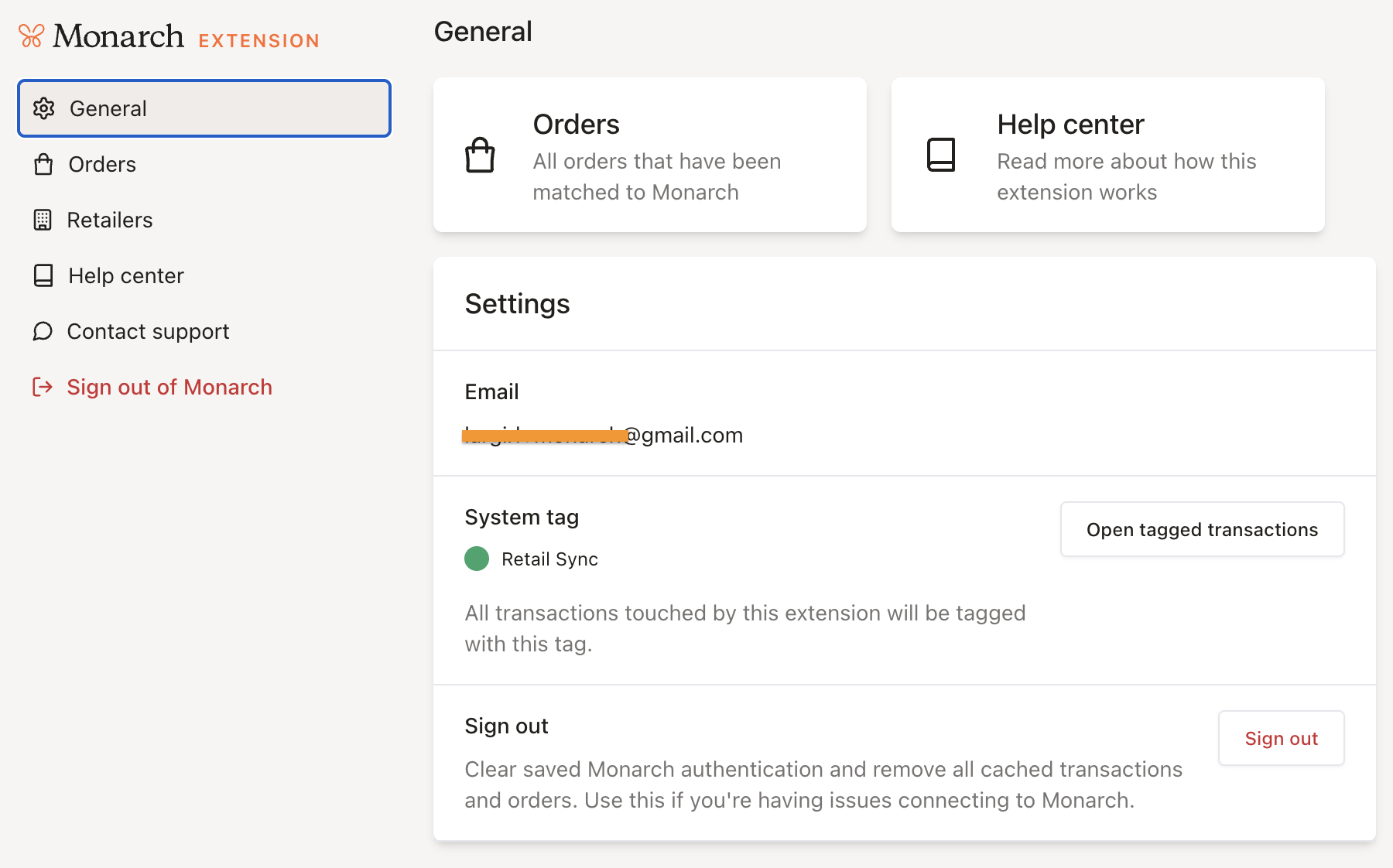
- You can visit the extension settings at any time by clicking the the gear icon within the extension.
- The settings you select during the set-up process will be retained for future syncs unless you manually update them.
- Any changes made to settings (like choosing to only add notes to transactions during the sync) will apply to future syncs, and will not update transactions that were already imported.
-
Once a transaction is touched by the extension, it won’t be updated again, even if you later change the settings.
From the settings page, you can access:
-
General: Sign out, view orders, & view help center
Orders: Sync older orders & view orders
Retailers: Update transaction preferences (i.e. whether the extension is allowed to update transaction notes and/or split and categorize transactions) & update merchant name
-
Troubleshooting
Sync failed
- For Amazon, the extension currently only works with Amazon US personal accounts, not business accounts. Amazon must also be set to English.
- Refresh the browser or reopen the extension.
- Make sure you're logged into both Monarch and the retail site in the same browser, on different tabs.
- If you're already logged in, log out and back into both sites. You'll need to reconnect in the extension.
- If problems continue, remove and reinstall the extension. Previously updated transactions and data won't be affected.
- If you're using Sync older orders, sign out of the retailer's website and back in. If the sync still fails, the retailer may be rate-limiting the request because there are too many orders. We can currently sync up to 180 orders per year; depending on the retailer's response, the extension may pull the first 180 or fail entirely.
- If you see “Retail sync is already in progress for this user and vendor,” wait for the current sync to finish before starting another, even across browsers. Enable auto-sync in only one browser.
Transactions not matched
- The extension matches transactions by date, order amount, and merchant. It checks a few days before and after the order date, since order and transaction dates may differ. Unmatched orders will be retried each time the extension runs.
- For Amazon, some orders may appear in Monarch under a different merchant, such as “Amazon Groce” or “Amazon Tips.” Update the merchant to “Amazon” manually or with a rule, and the sync should match it on the next run.
- Confirm that the purchase account is linked in Monarch. Transactions paid with credits, gift cards, or other unlinked payment methods may not match.
- For Amazon, open Orders in extension settings, then click the Amazon order ID to view order details. Scroll to Credit Card Transactions to confirm the payment method is linked in Monarch. If this line is missing, the transaction won't match (see screenshot).
- Pending transactions won't match.
- If an order matches multiple Monarch transactions by charge date and amount, it will match the older transaction. Account name isn't considered.
- If you chose to sync only future orders during setup, past orders won't sync.
- Monarch or the retailer may not be fully connected. Use the troubleshooting steps below.
- To manually match an order, go to Transactions > Retail Sync, open the unmatched order, and select Find match to link the correct transaction. Use Create transaction if it doesn't exist in Monarch yet. Pending transactions can't be matched.
Monarch and/or the retailer are disconnected
- Make sure you're logged into both Monarch and the retail site in the same browser, on different tabs.
- If you are already logged in, try logging out and logging back into both sites (you’ll need to reconnect in the extension as well).
FAQS
- What retailers does the extension support?
- What are the browser + device requirements?
- What type of orders will the extension process?
- Can I undo changes made by the extension?
- What if I have a household with multiple Amazon accounts?
- What if I share an Amazon or Target account with others not in my Monarch household?
- I received the error "Retail sync is already in progress for this user and vendor" - what do I do?
- What happens if my order was originally split by Amazon or Target into multiple payments?
- Will the extension be able to match transactions if I paid with a gift card, credit, or other alternative payment method?
I changed my mind and want to update it to run on future transactions only. Can I make this change?
- Can I re-run the sync on transactions that were already matched?
- What if I’ve renamed “Amazon” and/or "Target" to a different merchant name in my settings?
- Can I update the default "Retail Sync" tag to a different phrase or color?
- How does the extension work with rules that I have set up within Monarch?
- Why create an extension rather than build this into the app directly?
- How does the extension use AI?
- What information does the extension access? What about privacy?
- How do I update the extension?
- How can I get more help or report an issue?
What retailers does the extension support?
Right now, the extension is available for Amazon US orders (though we plan to add support for Amazon Canada in the future) and Target orders. We also are exploring adding support for additional retailers.
What are the browser + device requirements?
At this time, the extension works on Chrome and Chromium-based browsers (like Microsoft Edge, Brave, Opera, Vivaldi, Kiwi, and Arc). Desktop use is required. Currently, the extension won’t work on mobile. We are exploring adding additional browser support in the future.
What type of retail orders will the extension process?
Currently, the extension will attempt to match Amazon US and Target retail orders that were paid for using a payment method linked to Monarch. At this time, Kindle books or other digital orders, Whole Foods orders, Amazon Fresh, digital subscriptions, and non-US Amazon or non-US Target orders are not included.
Refunds cannot be matched right now, but we are looking at supporting these in the future.
Orders made via the Amazon or Target mobile app will sync, but you will still need to log into Amazon or Target on a desktop in order for the extension to work.
Can I undo changes made by the extension?
Yes. You can undo the extension's changes for an individual order directly in Monarch. Go to Transactions > Retail Sync tab (web only), open the matched order, and click Unlink. Unlinking reverses what the sync did to that transaction: it removes the "Retail Sync" tag, removes the notes and receipt/attachment the sync added, and frees the transaction so it can be matched again. If a transaction was split by the sync, unlinking also reverses those changes.
There's no way to bulk-reverse every change at once, but you can also use the "Retail Sync" tag to view all affected transactions and make edits manually (setting up rules can help here if needed).
What if I have a household with multiple retailer accounts?
While by default only one Amazon or Target account can be used at a time with the extension, you can sync multiple retailer accounts by switching the logged-in retailer account. Future syncs will use the most recently logged-in account. You will still see past orders from the previous account under "Orders." This process allows users to sync data from multiple accounts.
The extension can also be installed on multiple devices or different Chromium browsers or browser profiles, with a different retailer account logged into each one.
What if I share an Amazon or Target account with others not in my Monarch household?
All orders under the retailer account will be visible under the "Orders" section of the extension settings, however, the extension will only be able to match orders that are listed as a transaction within your Monarch account. It will not create new transactions within Monarch for the other orders.
I received the error "Retail sync is already in progress for this user and vendor" - what do I do?
Only one retail sync can run per user at a time. If two syncs are started around the same time—such as in different browsers (for example, Chrome and Brave)—the first sync will proceed normally, but the second will fail with an error like “Retail sync is already in progress for this user and vendor.” This can happen if both browsers have automatic syncs scheduled close together.
To avoid this issue, make sure the auto-sync every 24 hours option is turned on in only one browser. If you use multiple browsers for testing or troubleshooting, wait for one sync to fully complete before starting another. This restriction applies per user account (not per device or household).
What happens if my order was originally split by the retailer into multiple payments?
For orders that were split by the retailer into multiple charges, the Monarch extension will still attempt to match them to transactions within Monarch.
Will the extension be able to match transactions if I paid with a gift card, credit, or other alternative payment method?
If the order was fully paid for using a financial account that is not linked within Monarch (such as a gift card or credit), we will not be able to find it within Monarch to categorize it. If payment was split between a non-linked payment method and a payment that is linked to Monarch, the sync will still attempt to match it.
However, even if we cannot find a match, the transaction will still appear in the extension settings in the “Orders” section, will appear as “Credits Used.”
Because these transactions paid for with methods outside of Monarch don’t affect your Monarch budget or cashflow, there is no way at this time to manually match these.
I changed my mind and want to update it to run on future transactions only. Can I make this change?
No. Once the selection has been made during the initial set-up process, it cannot be changed.
Can I re-run the sync on transactions that were already matched?
The automatic sync will not touch a transaction again once it has matched it; even if you remove the tag and notes or un-split it, the backend still recognizes it as previously updated and won't re-process it. However, if you want an order re-matched, you can now do this manually. In the Monarch web app, go to Transactions > Retail Sync tab, open the order, and click Unlink. Unlinking resets the transaction so it can be matched again, and you can then use Find match to link it to the correct transaction.
What if I’ve renamed “Amazon” or "Target" to a different merchant name in my settings?
You can update the extension settings to recognize the name that you are using within the Monarch app by under the "Retailer" section of the extension settings.
Can I update the default “Retail Sync” tag to a different phrase or color?
Yes, you can update the default extension tag of “Retail Sync” to use a different word or phrase, or change the color color, in Settings > Tags. This change will transfer to the extension settings and the extension will use your updated version of the tag moving forward.
How does the extension work with rules that I have set up within Monarch?
Rules are applied when the order first comes into Monarch via our data providers, so the rule will be applied at the time the transaction first arrives in Monarch. The extension may then override any rules when it runs.
Why create an extension rather than build this into the app directly?
We built the retail sync integration as a Chrome extension rather than natively in the Monarch app due to technical limitations. Retailers don't offer an API that would allow access to your order history, however we are able to pull this information using an extension.
This approach also enables us to provide a more stable and seamless experience without requiring users to frequently reconnect their retail accounts. While it’s not an in-app solution today, we’ve built it in a way that allows us to migrate it into the product if Amazon or Target ever opens up an API in the future.
How does the extension use AI?
This extension uses AI to process receipt data and properly categorize transactions. No personally identifiable information is ever shared and the only information passed through is what is required to analyze the order itself (i.e. item name, merchant name, price and purchase date).
What information does the extension access? What about privacy?
The extension accesses your order invoices from the retailer and uses select pieces of information to help accurately categorize and split transactions, specifically the merchant name, item name, price, and purchase date. No personally identifiable information from your orders is used, stored, or sent anywhere outside of Monarch. The retailer does not have access to any of your Monarch information.
How do I update the extension?
The extension updates automatically—you should always have the latest version. But if you need to, you can uninstall and reinstall the extension without losing any data.
Why am I being asked to grant permissions to allow the extension to work?
If this is your first time downloading and using the extension, you will have to grant Amazon and Target permission to proceed; older users are grandfathered in with approvals already active. This approach makes all permissions to specific sites optional, allowing the extension to stay working even with new versions, and only makes it relevant when a user first connects to that retailer.
Need more help or to report an issue?
Click here to contact our team directly.
If you are having an issue, it would be very helpful to include the extension version, which can be found by copying and pasting chrome://extensions/ into your browser, locating the Monarch extension, and clicking "Details."