
|
The new goals experience is now available in beta to all users! Migrate to Goals 3.0 from your Goals page following the instructions here. |
Debt paydown in Monarch helps you track and accelerate your journey toward being debt free — all from one dashboard. It brings together your loans, credit cards, and other debt accounts into a clear, visual payoff plan, and even allows you to experiment with different pay off scenarios to see how much you can save.
Coming from old Goals? Check out Introducing Goals 3.0 for more information on what’s changed and how to migrate your existing goals!
Table of Contents
- What Are Pay Down Goals?
- Adding and Managing Pay Down Goals
- Budgeting for Pay Down Goals
- Understanding Your Debt Dashboard
- Related Articles
- FAQs
What Are Pay Down Goals?
Each debt account in Monarch is automatically visible in the pay down section of Goals. You don’t need to create a separate “debt goal” — your account is the goal.
For each goal, you’ll see helpful metrics, like total debt principal and projected interest, to help you understand your debt and reach your goals faster.
To track and plan for paying down your debt in Monarch, there are two core components to understand and set up:
Adding and Managing Pay Down Goals
Monarch automatically recognizes accounts with outstanding balances as part of debt paydown goals. If your debt account isn’t synced, you can create a manual liability account.
Managing which liability accounts appear
New liability accounts will automatically be included in your Goals pay down view, and you can choose which accounts are included or excluded at any time.
How goals stay in sync with your liability accounts
Your pay down goals automatically stay in sync with your liability accounts in Monarch.
- Add a new liability account → It’s automatically added as an active pay down goal
- Delete a liability account → It’s automatically removed from your pay down goals
- Change an account’s type from Liability to Asset → It’s automatically removed from your pay down goals
- Close a liability account (set its balance to $0 but retain its history) → It’s automatically removed from your pay down goals
- Hide a liability account → No changes occur in Goals unless you specifically choose to hide or exclude it from the pay down section
How to manually exclude an account:
You can exclude a single account from your pay down list in two ways:
- Click the three dots to the right of the balance for the account in question.
- Select Exclude account.
Or:
- Click Manage.
- Toggle the account off (exclude it).
How to manually include an account:
If you previously excluded an account, you can add it back at any time:
- From the pay down Goal page, click Manage.
- In the accounts list, toggle the account back on (include it).
Tip: You can also use the three dots on an individual account row to exclude or include that specific account.
Editing goal details
You can edit pay down goal details to ensure projections are accurate:
- From the pay down Goal page, click the three dots to the right of the balance for any account.
- Select Edit account details.
- Add or update:
-
Interest rate or APR
- Note: This can be set to 0%.
-
Minimum monthly payment
- Note: When setting minimum monthly payment, only include principal and interest—do NOT include tax or insurance costs.
-
Planned monthly payment (optional)
-
Note: The planned monthly payment only needs to be set when you plan to pay a different amount than minimum monthly payment.
-
-
Interest rate or APR
- Recommended: Toggle Exclude account from pay down projection if you pay off the account monthly (like a credit card you don’t carry a balance on). This will exclude the account from projections and the paydown calculator in Goals > Pay down.
Tip: These fields are what power your debt-free date and total interest projection.
Budgeting for Pay Down Goals
Your pay down dashboard tracks progress using your real account balances, and you can optionally translate your pay down plan into budget contributions. It’s important to know how debt payments appear in your budget.
How debt payments affect your budget
When you make a payment toward a loan, credit card, or other debt account, the category of that transaction determines whether it appears in your budget.
- If the payment is categorized as an Expense (for example, “Debt Payment” or “Auto Loan Payment”), it will show up in your budget.
- If it’s categorized as a Transfer, it won’t, because transfers move money between accounts but don’t count toward your spending plan.
Common setup: If your debt payment shows up as two transactions (an expense leaving checking and a transfer into the debt account), you may need to choose either category budgeting or Pay down Contributions to avoid double counting in your budget.
This is consistent with how Monarch treats transfers and credit card payments: only expense categories impact your budget totals, while transfers affect your account balances but not your spending plan.
Note on credit card debt:
You can budget for debt payments either using expense categories or using Contributions > Pay down (account-level). Many people prefer Contributions > Pay down for more detailed, account-by-account planning.
If you categorize credit card payments as expenses and also track them in Contributions > Pay down, that can sometimes result in double counting if the original card purchases were already recorded as expenses in your budget.
We recognize this isn’t ideal and is a known limitation of the current setup. We’re actively exploring better ways to handle budgeting for credit card debt in the future.
Saving Your Plan to Budget
What does saving to budget do?
Saving to budget translates the exact plan currently shown in your pay down tab into budget contributions. This includes the minimum (or planned) payment for each account included in pay down, as well as your calculator settings, such as additional one-time or monthly payments and the selected method (planned, avalanche, snowball).
If you add a one-time extra payment in the savings calculator and then Save to Budget, it should appear in your budget for the current month only.
How to save the pay down plan to budget:
In the pay down tab:
- Click the Save to Budget button in the top right corner.
- In the confirmation modal, confirm whether you want to apply the planned contributions from the projection to all accounts or a subset. We recommend including all accounts in the projection to ensure your budget yields the exact same projection you planned.
- Navigate to your budget and check the Contributions > Pay down section. It should show the planned amount based on your projection and calculator.
Note: In your budget, Contributions (including Save up and Pay down) may appear below Total expenses, so you may need to scroll to the bottom to see them.
How to update your budget actuals:
As you make progress towards paying down your debt, you can flag transactions in your debt account so that they are accounted towards your actuals in the budget.
Note: Transactions will still appear in the actuals for their given category. They won’t count toward pay down actuals until they’re linked to the pay down goal (manually or via rules).
- You can manually change the Link to pay down goal to Yes from the transaction drawer.
- Or, set up a rule with Link to pay down goal action.
Notes:
- Manual and automatic linking via rules is only available for transactions that belong to a liability account that you have already included in Budget > Contributions, as explained in the Save to Budget section. (In other words: payments leaving checking/non-liability accounts can’t be linked to Pay down today.)
- Linking a transaction to a pay down goal can help avoid double counting in your budget by removing that linked transaction from the category’s actuals. If your payment is represented by multiple transactions (for example, an expense debit and a transfer credit), you may still need to adjust the other transaction to avoid double counting.
How to include a liability account in the budget without using the calculator:
If you prefer to budget planned contributions to liability accounts without using the projection and calculator, you can still do so:
- Open the account settings.
- Disable the toggle Exclude account from budget contributions.
- Navigate to your budget and manually set a planned amount for the relevant accounts in the Contributions > Pay down section.
If you already have a fixed budget item for a debt payment:
If you already have a fixed budget item (like “Auto Loan Payment”) and you also use Contributions > Pay down for the same debt, you may be planning for that payment twice. Consider removing the fixed item if you’re switching to the pay down budget approach.
Understanding Your Debt Dashboard
The main pay down page gives you an overview of your entire debt landscape.
You’ll see:
- Summary cards at the top showing:
- Your Current Debt Principal across all accounts
- Projected Interest owed across all accounts
- Total Principal & Interest combined for all accounts
- Debt Free Date
- A color-coded projection chart
- A list of liability accounts grouped by type
Tip: If you change your planned payments, the chart and debt-free date will update automatically.
Reading the projection chart
The projection chart shows a curved line for each account, showing when the payoff is expected to occur based on your current settings. You can view it by Timeline or by Principal & Interest.
Using the savings calculator
Use the savings calculator to simulate different payoff scenarios, without changing your actual payments or budget. The built-in calculator lets you see how extra payments affect your timeline and total interest. Play around — it’s a safe place to dream about getting debt free faster!
To run a simulation:
- Select Pay down from the Goals page.
- Pick your payoff method:
- Avalanche: Pay highest-interest debts first (saves more in total interest)
- Snowball: Pay smallest balances first (builds momentum faster)
-
Planned payments: Pay only the scheduled minimum or planned payments
Note: Monthly and one-time extra payments are only available when using the avalanche or snowball methods. When using the avalanche or snowball methods, Monarch rolls over the full payment amount from paid-off debts — including minimum or planned payments — into your remaining balances, rather than only applying additional “extra” payments.
- If you select Avalanche or Snowball, you can also choose a monthly extra payment, a one-time extra payment, or both.
-
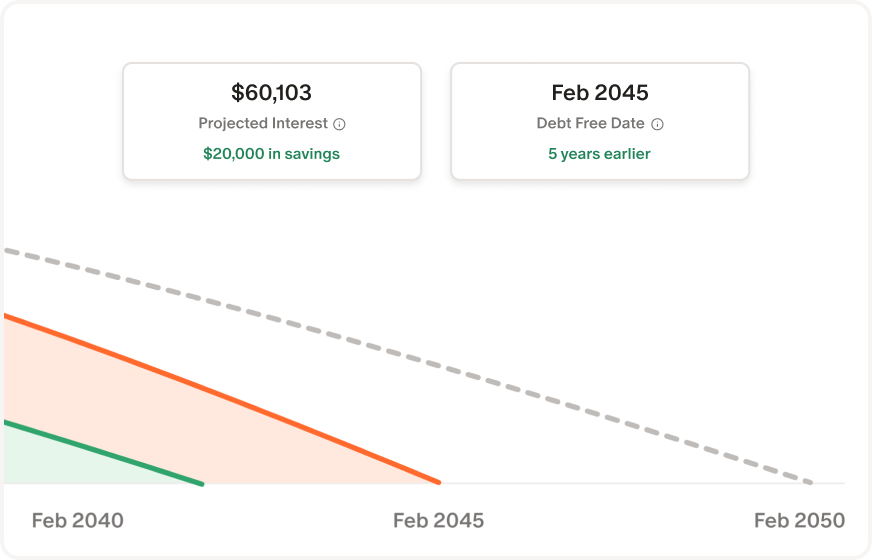
The chart will automatically update as you change numbers and payoff methods. You’ll see:
- A banner at the very top showing the applied method (e.g. “Avalanche with $100 monthly extra”).
- Updated summary cards at the top showing the new projected numbers.
- A dotted line showing the old payoff timeline.
- Colored lines showing the new projected payoff timelines.
Remember, this is just a simulation and will not update your actual budgeted amount.
Tip: You can clear your simulation anytime to return to your current payment plan.
Related Articles
FAQs
- Why is Goals in public beta, and what does that mean? Why not make it part of Labs?
- What’s the difference between avalanche and snowball in the savings calculator?
- Can I include mortgages and auto loans?
- Why can’t I connect more than one debt account to a single goal?
- How do I budget for pay down goals?
- Where do I find pay down in my budget?
- Why don’t I see my one-time extra payment in my budget after Save to Budget?
- If I already budget for a loan as a fixed expense, should I also use Contributions > Pay down?
- Why can’t I link a transaction to my pay down goal?
- Why isn’t my credit card showing in my pay down projection?
- How do I change my debt-free date?
- Can I still see how much I’ve contributed to paying down debt over time?
- Can I link my crypto account in Goals?
Why is Goals in public beta, and what does that mean? Why not make it part of Labs?
Goals 3.0 is in public beta because it’s ready for real use, but still evolving.
You’ll find that this version of Goals is already rich with new functionality, smarter tracking, and design improvements. But there’s more to come, and public beta lets us gather your feedback as we finish building out the full experience.
Unlike Labs features, which are more experimental, public beta means this version of Goals is stable and supported — just not yet final.
If you’d rather wait for the complete rollout, that’s perfectly fine too. We plan to move out of beta soon.
What’s the difference between avalanche and snowball in the savings calculator?
- Avalanche: Prioritizes high-interest debts, saving you more on interest overall.
- Snowball: Prioritizes smaller balances, giving you quicker wins and motivation early on.
Can I include mortgages and auto loans?
Yes. Any liability account can appear as a pay down goal. To see principal and interest projections in the chart, make sure you’ve entered the account’s interest rate and at least one monthly payment amount.
Why can’t I connect more than one debt account to a single goal?
Each debt account is now tracked individually. This ensures more accurate forecasts since each may have different interest rates, balances, and minimum payments, and helps you see which debts to focus on first.
How do I budget for pay down goals?
To budget for pay down goals, use the Save to Budget feature. After you save, go to Budget > Contributions > Pay down. (You may need to scroll below Total expenses to find the Contributions section.)
Where do I find pay down in my budget?
You can find pay down in Budget > Contributions > Pay down.
Tip: In your budget, Contributions (including Save up and Pay down) may appear below Total expenses, so you may need to scroll to the bottom to see them.
Why don’t I see my one-time extra payment in my budget after Save to Budget?
If you added a one-time extra payment in the savings calculator and then clicked Save to Budget, that one-time amount should appear in your budget for the current month only.
To find it:
- Make sure you’re viewing the current month.
- Go to Budget > Contributions > Pay down (you may need to scroll below Total expenses).
If I already budget for a loan as a fixed expense, should I also use Contributions > Pay down?
It depends on your preference.
- If you want to plan debt payments by account, use Contributions > Pay down.
- If you prefer to plan debt payments by category (for example, one “Auto loan” or “Student loans” budget item), you can keep using expense categories.
If you use Contributions > Pay down for a debt and also keep a fixed budget item for that same payment, you may be planning for that payment twice. Consider removing the fixed item if you’re switching to the pay down budget approach.
Why can’t I link a transaction to my pay down goal?
You can currently only link transactions to Pay down if the transaction belongs to the liability account and the account is included in Budget > Contributions > Pay down (i.e., it is not excluded from budget contributions).
If your payment shows up as a debit leaving checking (a non-liability account), that transaction can’t be linked to Pay down today. A common workaround is to categorize the payment as a transfer and link the transaction on the liability account side (when available).
Why isn’t my credit card showing in my pay down projection?
If a credit card isn't showing in your pay down projection, check that the account has both an APR/interest rate and a minimum or planned monthly payment set. Both fields are required for the account to appear in the pay down projection.
Why don’t my pay down goals show up in my budget after upgrading to Goals 3.0?
Pay down goals won’t automatically appear in your budget until you save them using the Save to Budget feature.
How do I change my debt-free date?
Update your planned monthly or one-time payments in the savings calculator to instantly see how your payoff timeline changes.
Can I still see how much I’ve contributed to paying down debt over time?
The pay down view focuses on your overall progress and payoff timeline instead of contribution charts.
If you want to see your history of payments, check the balance chart on the account page — it shows how your debt has decreased over time.
Can I link my crypto account in Goals?
Crypto accounts can be linked to save up goals, but are not available for pay down goals.
Why does the debt timeline show I'll pay off debt sooner than expected?
If your projected payoff date looks too optimistic, first double-check the payment details you’ve entered for the account.
When setting a minimum or planned monthly payment, only include the portion that goes toward principal and interest. Do not include taxes, insurance, or escrow amounts, as those aren’t applied to reducing your loan balance and can make the projection appear shorter than it should be.
I have a credit card that I pay off every month. Can I exclude it in my debt projection?
This is a common scenario. If you don’t carry a balance and pay the card off each month, we recommend excluding that account from your pay down goals.
To exclude an account, click the three dots next to the account in the Pay Down view and select Exclude account.
Excluding the account removes it from your payoff projections and debt-free date calculations, while still keeping the account connected elsewhere in Monarch.